First, find the right microphone
Dictation puts words into the field where you would normally type. An app's voice-message button records an audio message for someone to listen to. Both controls may have a microphone symbol, so start by tapping the writing area and looking at the keyboard that opens.
For unhurried practice, use a blank note. You can experiment, correct and delete without choosing a recipient. If the app begins recording a voice message, stop that recording and return to the text field before trying again.
On iPhone
In Settings, open General, Keyboard and enable Dictation. Tap a text field, then the keyboard's dictation button. Say a sentence and tap the button again to stop. Availability and features vary by language and region.
After stopping, read the result. You can correct it with the keyboard rather than starting the whole sentence again. If you cannot find the option, consult Apple's guide linked below; labels and positions may differ across versions.
On Android with Gboard
These steps are for people already using Gboard. Open a note, tap its text field and the keyboard microphone. When prompted to speak, say your sentence. Voice typing and punctuation are not available in every language.
If your keyboard has another name, use that manufacturer's instructions. You do not have to change keyboards just for this exercise. If you see a microphone permission request, read it and decide whether to allow the feature. Pause if you do not understand what is being requested.
A short exercise without sending anything
- Open a test note without personal information.
- Dictate: “I will spend ten minutes organizing the desk”.
- Stop dictation and check that every word appeared.
- Correct one word with the keyboard to practice editing.
- Delete the note afterwards if you no longer need it.
Speak at a comfortable pace without pressing the phone against your mouth or straining your voice. If a word goes wrong, try a shorter sentence. You can also type a difficult name instead of repeating it several times.
Review the words that change the meaning
Read the whole sentence, not just its final word. “I cannot come” and “I can come” mean very different things. Dates, times, names and amounts deserve a second look. For an important message, pause before pressing send.
A sentence such as “I will arrive at two” may need context: two in the afternoon or two in the morning? If you mean 2 p.m., write that clearly. Reviewing the result is part of the process, not a sign that you used the feature incorrectly.
When speech does not turn into text
If nothing appears, check that the writing field is still selected and that you used the keyboard control. If words appear in another language, check the keyboard's selected language. If it remains difficult, stop and try an ordinary sentence in a quieter place.
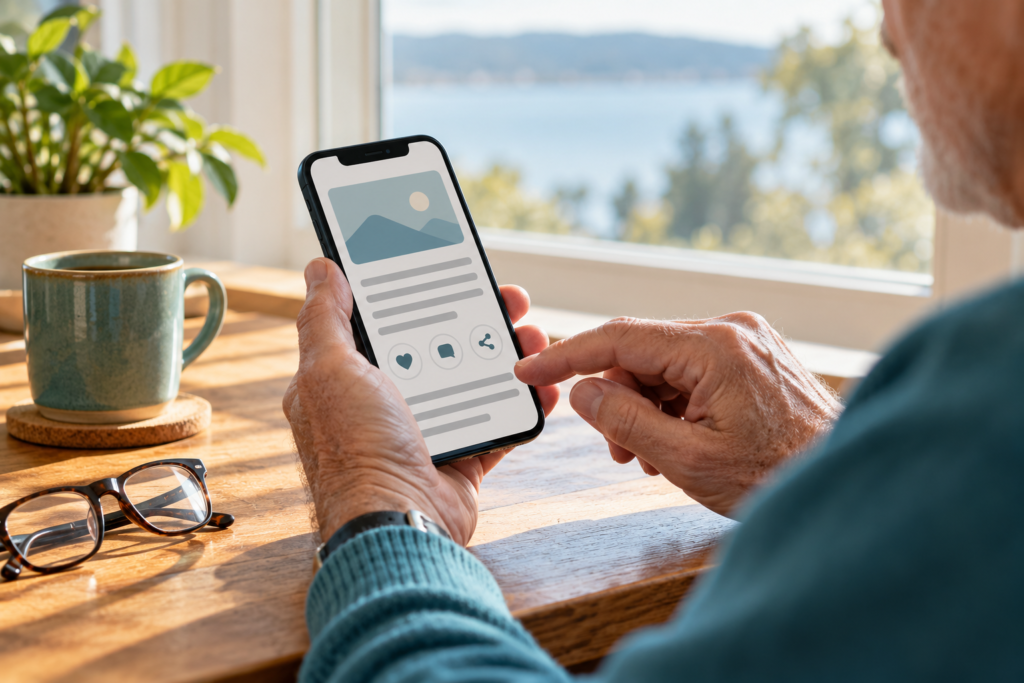
Avoid changing several settings at once. Note the message on screen and consult your keyboard's documentation. This article's photograph is illustrative; controls on your own phone may look different or sit in another position.
A check before speaking
Choose a place where other people will not overhear information you want to keep private. For practice, do not dictate passwords, identity numbers or banking details. Once comfortable, move from your test note to a simple message and check the recipient as well as the text before sending.